Free to use · MIT licensed

Free, open-source
macOS file manager.

An open-source alternative to Finder with a native Mac interface.
Use split panes, editable paths, an integrated terminal and ZIP browsing.
Browse, preview and organize files in one app.

macOS 14+ Apple Silicon

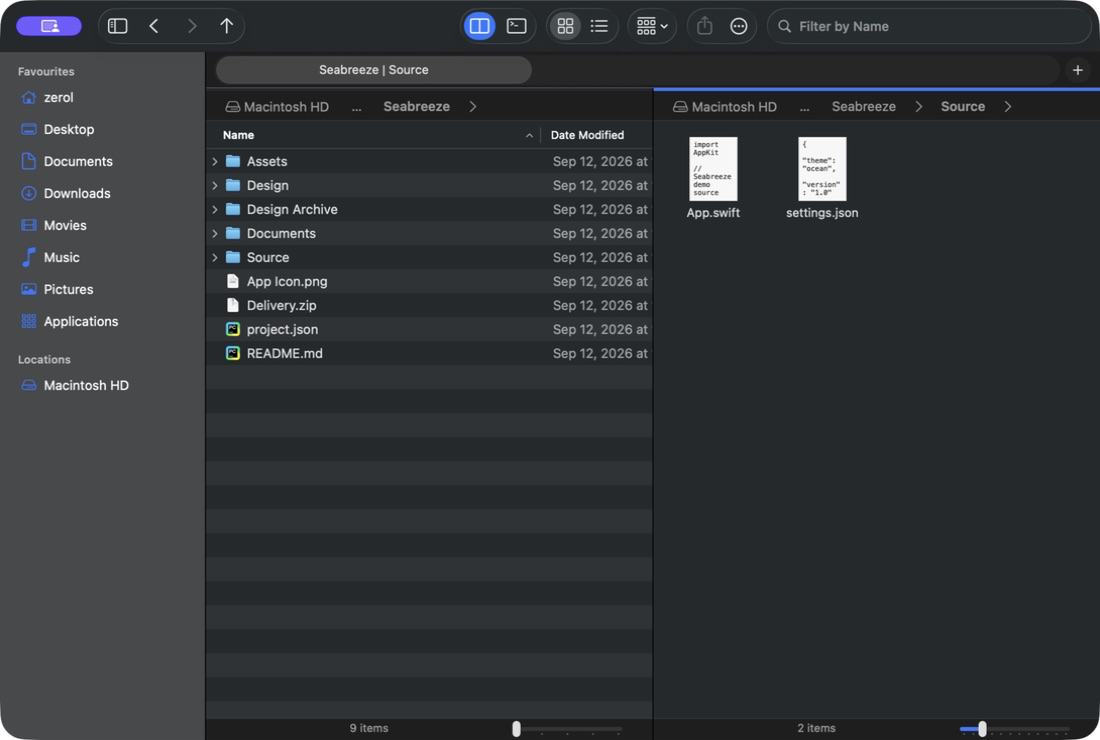
Tursora split panes: the Seabreeze project in list view on the left, with the Source folder in icon view on the right.
Split-pane browsing. View two folders together and copy selected files to the other pane.
Native Mac app

Quick Look, macOS sharing and customizable shortcuts.

Features

Path navigation, split panes
and ZIP browsing

Edit a path, work with two folders side by side, or read a ZIP archive.

01 / Path navigation

Enter a path
to open a folder.

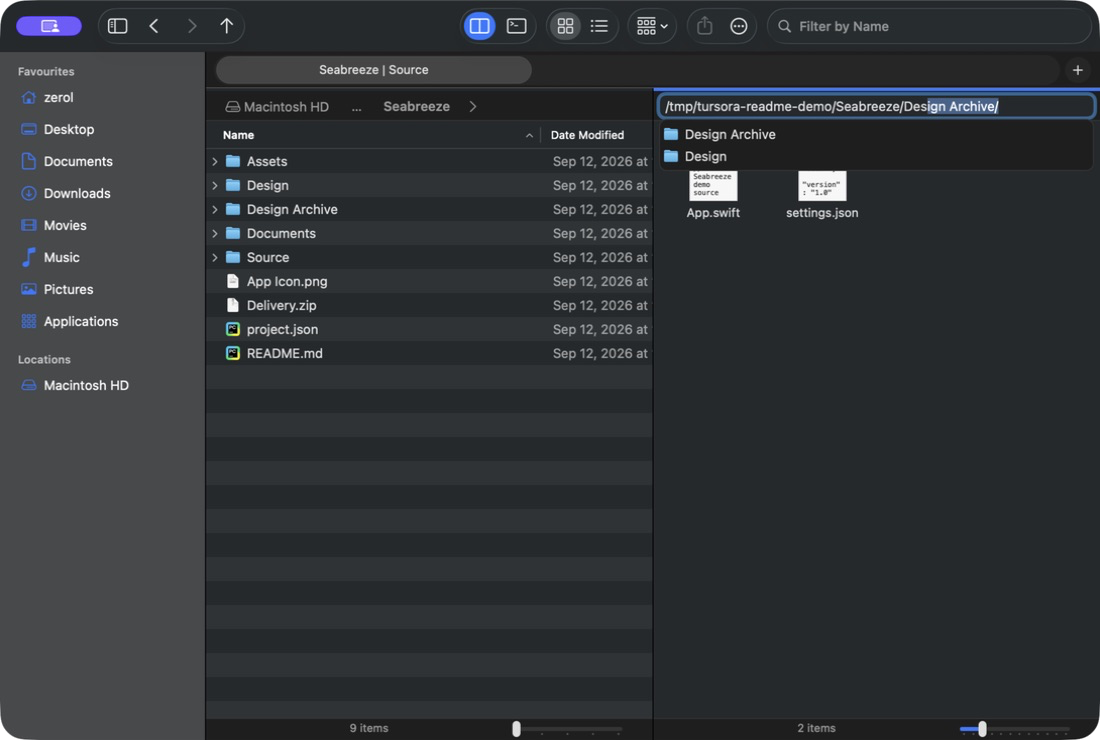
Click a breadcrumb to browse parent folders, or type a full path. Folder suggestions appear as you type.

Each split pane has its own path bar. Select a pane to navigate there; its back and forward history stays independent.

⌘ LEdit the current path
The left pane lists Seabreeze. The right Source pane shows an editable path with Design and Design Archive folder suggestions.
Click breadcrumbs or type directly in the same path bar.

02 / Split panes

Browse side by side
and copy between panes.

Open the source and destination folders together, then copy selected files to the other pane.

Each pane has its own path, navigation history and name filter. Browsing one side leaves the other in place.

⇧ ⌘ DShow or hide split panes
⇧ ⌘ CCopy to the other pane
The Seabreeze project is listed on the left, while files in Source appear as icons on the right.
View source and destination folders in one window.

03 / ZIP browsing Enabled by default

Browse ZIP files
in the current pane.

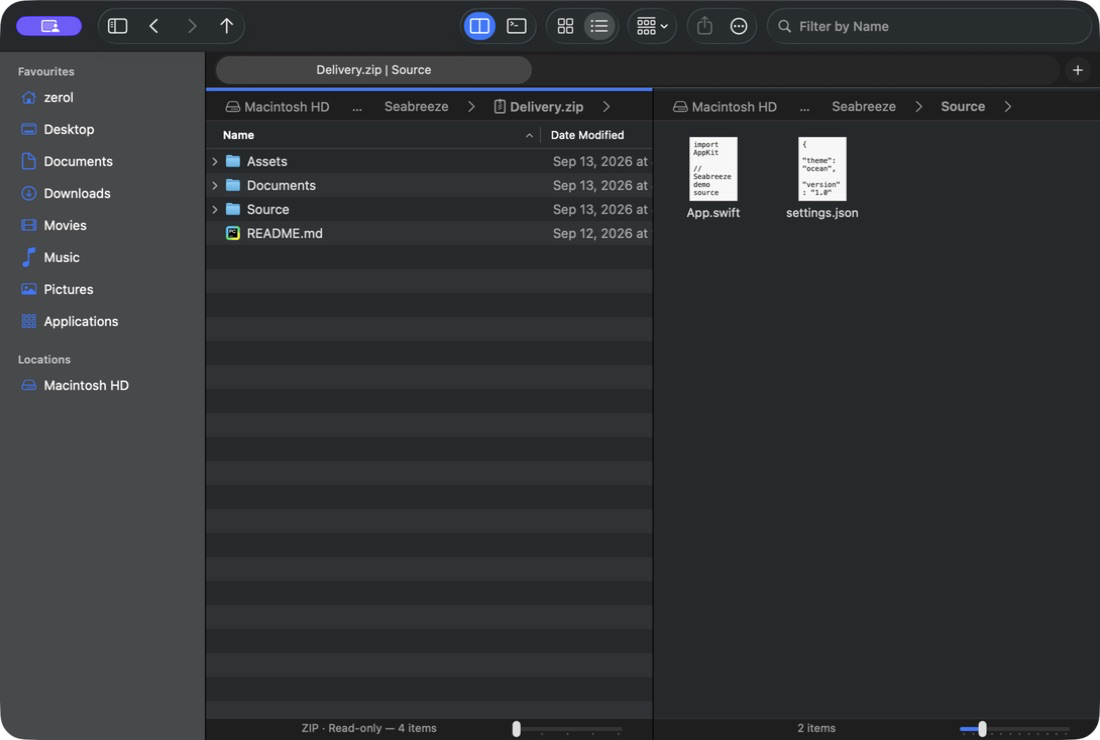
Open a ZIP archive in the current pane. Use the same path bar and split view to preview files or copy out the contents you need.

Archive contents are read-only. Opened files are temporary copies retained until Tursora quits; edits are not written back to the ZIP.

⌘ ,Configure ZIP browsing in Settings
Learn about the terminal and ZIP browsing
The root contents of Delivery.zip appear in list view on the left, with Source folder icons on the right.
Enabled by default and optional in Settings. To unpack an archive, select the original ZIP and choose Extract.

File operations and views

Everyday file operations
with undo.

Use list or icon views, with grouping, sorting and filtering.

File operations and undo
Copy, move, rename and move files to the Trash. These operations, ZIP compression and extraction support undo.
Lists, icons and filtering
Switch between list and icon views, group and sort by file properties, or filter the current folder by name.

Built-in tools

Integrated terminal and ZIP browsing

Terminal access and ZIP browsing are enabled by default. Turn them off in Tursora → Settings…. Your existing settings are preserved.

New in 0.3.0

Rename several items at once with Finder's Replace Text, Add Text and Format modes and a live preview. Open the Trash like any folder, put an item back where Tursora trashed it from, or empty it. The terminal and the file views follow each other's folder, in zsh, bash and fish. Sort and show columns for Date Created, Date Added and Date Last Opened, and let folders report how many items they hold. Drag onto a folder to spring it open, drop onto the path bar, and hold Command to force a move. Press Shift-Command-O for a command palette over every command, favourite and recent folder.

Terminal improvements in 0.2.1 F4

Use the toolbar button or F4 to show or hide the terminal, with a more compact header. Hiding keeps the session running. The default zsh session follows the active browser pane's directory, even while hidden. Folder changes wait while a foreground command is running, read waits for input, or the command line contains unfinished input. For other custom shells, use Restart to open the current browser directory. Shell, font, color and shortcut settings remain available. Quitting, closing a window or restarting a shell asks for confirmation when tasks are detected.

Browse ZIP archives as read-only folders

Cancel while an archive opens, or retry after an error and return to its containing folder. Ordinary ZIP files are supported; password-protected archives and writing back into a ZIP are not. Temporary opened copies are removed on quit. Use Save As in the external app to keep edits.

Install guide · 0.3.0

Download and install
Tursora

Tursora is free to use and open source under the MIT license.
Download it, read the source, make changes or contribute.

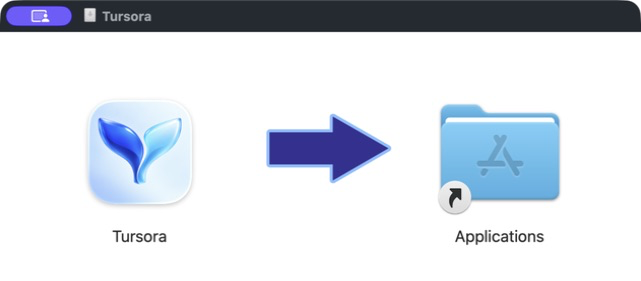
The actual DMG installer, with Tursora on the left, Applications on the right, and an arrow between them.
The Applications shortcut points to the system applications folder. You can also copy the app to a folder you choose.

Requirements

Price
Free · MIT license
System
macOS 14 or later
Architecture
Apple Silicon
Signing
Ad-hoc signed, not notarized

Install from the DMG

Version 0.3.0 is available as an Apple Silicon DMG.

  1. From the latest stable release download Tursora-0.3.0-macOS-arm64.dmg. The same page includes SHA-256 checksums. No GitHub account is needed.
  2. Double-click the DMG to open it.
  3. Copy Tursora.app to a writable folder: /Applications, ~/Applications or another location.
  4. Open the installed copy, outside the read-only DMG.

First launch: use the actual app path

If macOS cannot verify the app, confirm its official source and matching release checksum first. Run this command in Terminal, replacing the path with your installed copy:

xattr -dr com.apple.quarantine "/Applications/Tursora.app"

To insert the path without typing it, enter xattr -dr com.apple.quarantine and a space, drag the installed app into Terminal, then press Return and open it. A copy you own and can write normally needs no administrator password. For a personal installation, use "$HOME/Applications/Tursora.app". Managed devices may still require IT approval. First-launch and permission details

Install with Homebrew

Run these three commands in order: add the tap, trust the Tursora cask, then install. Continue only after each succeeds, keeping the full repository URL:

brew tap zerolfx/tursora https://github.com/zerolfx/Tursora
brew trust --cask zerolfx/tursora/tursora
brew install --cask zerolfx/tursora/tursora

If an error says it cannot find zerolfx/homebrew-tursora, Homebrew used the default tap address. Run the full-URL tap command above first. This tap installs the published 0.3.0 DMG and verifies its pinned SHA-256. Update and uninstall instructions

The second command trusts only the Tursora cask. If you still see untrusted tap, see installation troubleshooting.

To select another folder, add --appdir="$HOME/Applications" to the third command, substituting your chosen path. If you cannot write to Homebrew itself, use the DMG instead. Follow the first-launch steps above for either method.

Ask an agent to install it

Give this request to an agent with access to your Mac. The installation guide (Markdown) covers choosing a location, verifying the download and first launch:

Read https://zerolfx.github.io/Tursora/install.md and install Tursora on this Mac. Choose a writable location, verify the download, and handle first launch for the installed copy.
You can also build locally

Tursora screenshot